Character creation is the heart of any game. Previously, this required weeks of an artist’s work, but in 2026, thanks to Leonardo AI, you can go from an idea to detailed concept art in a matter of minutes.
In this article, we will break down how to get the most out of this neural network for your game project.
Step 1: Choosing the right model
Leonardo AI offers dozens of models, but the best ones for games are:
- Leonardo Phoenix. The newest model (2025-2026), which perfectly understands complex prompts and text.
- Vision XL. If you need realism or a cinematic look.
- DreamShaper v7. A classic for stylized, fantasy characters.
Step 2: The Art of the Prompt (Character Sheet)
For a character to be suitable for modeling, you need more than just beautiful art-you need a Character Sheet.
Prompt Example:
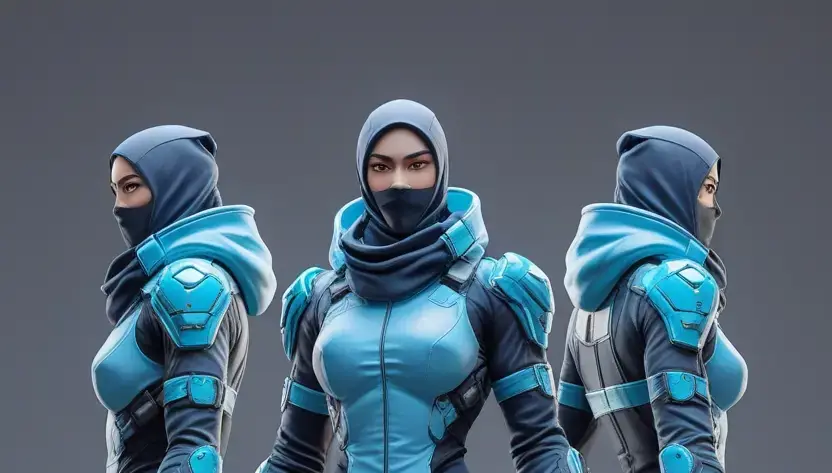
Full character sheet of a futuristic cyber-ninja, multiple angles: front view, side view, back view, standing on a neutral gray background, highly detailed armor, neon blue accents, game asset, concept art style, 8k resolution.
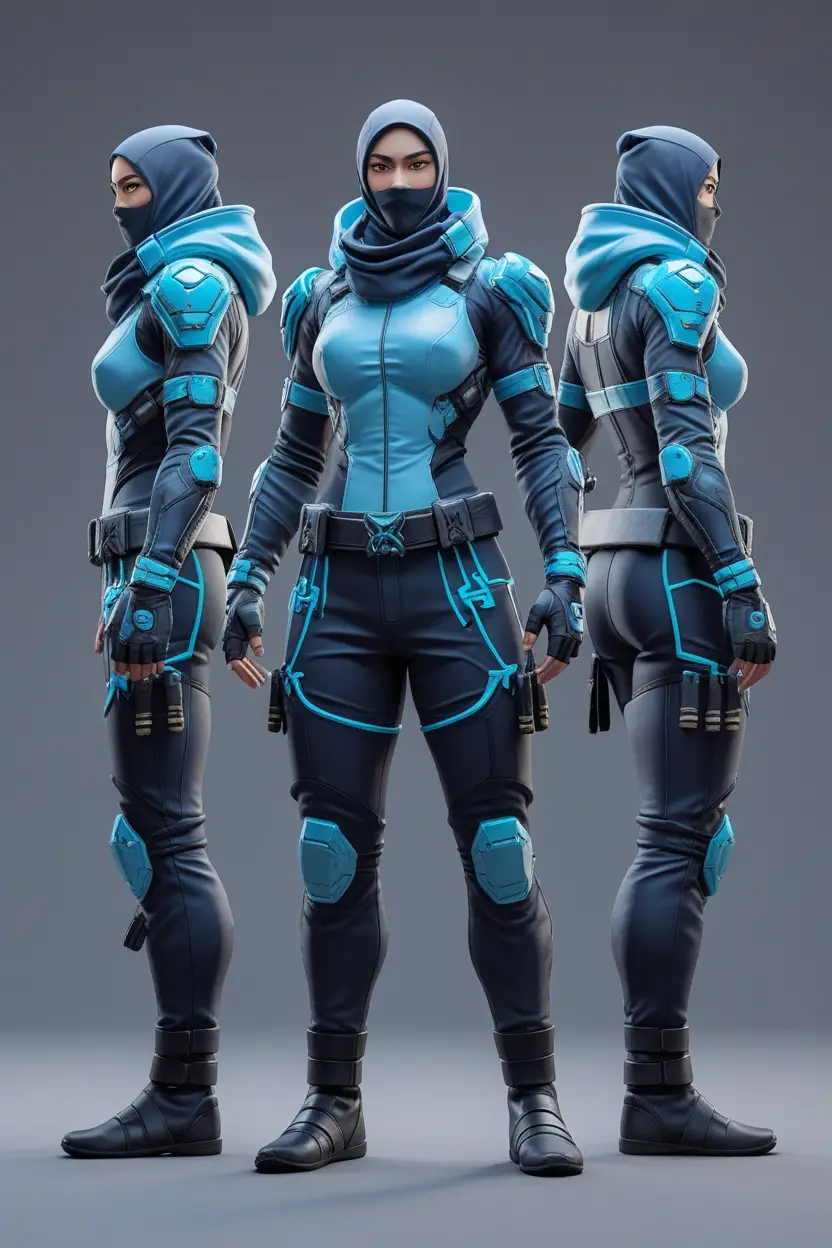
Tip: Always add “neutral background” or “white background” to make it easier to “cut out” the character for the game later.
Step 3: The Secret to Consistency (Character Reference)
The biggest problem with AI is when the hero starts looking like a different person in the second generation. Leonardo AI has a powerful feature called Character Reference.
- Generate the perfect face or look for your hero.
- Upload this image into the Image Guidance block.
- Select the Character Reference mode.
- Now, in new prompts (for example, “hero running in the forest”), the AI will copy the facial features and clothing from your reference.
Step 4: Working with Details via AI Canvas
If the character is almost perfect, but you don’t like the shape of the sword or the eye color-don’t regenerate everything! Use AI Canvas:
- Select the part that needs to be changed (Inpaint).
- Write in the prompt: “change sword to a laser axe”.
- The AI will replace only the selected area, maintaining the style of the entire image.
Step 5: Bringing the Hero to Life (Leonardo Motion)
In 2026, a character doesn’t necessarily have to be static. Use the Motion feature to add subtle animation: hair movement, armor glint, or breathing. This is perfect for “live” dialogues or hero previews in the game menu.
FAQ: Briefly About the Essentials
Can I use these images in commercial games? Yes, Leonardo AI’s paid plans provide full commercial rights to the generated content.
What should I do if the AI draws “extra fingers”? Use a Negative Prompt. Add words like: extra fingers, deformed hands, mutated, blurry.
What image size is best to choose? For full-length characters, use an aspect ratio of 9:16 or 2:3.
Conclusion
Leonardo AI is not just an image generator, but a full-fledged workstation for indie developers. The key is to experiment with the Phoenix model and don’t forget about Character Reference so that your hero remains themselves in any adventure.

Leave a Reply